Configuring Synchro
Syndata works by parsing data from raw report files (.txt) that you upload. To ensure that Syndata can process the data correctly, it is crucial to configure the appropriate settings within Synchro.
This guide provides step-by-step instructions to help you set up Synchro for exporting data in a format compatible with Syndata. Proper configuration is essential to minimize errors and ensure seamless data processing.
Scenario Manager Setup
Step 1
It is important for you to fill out the scenario manager information completely and correctly for all scenarios that you wish to import.
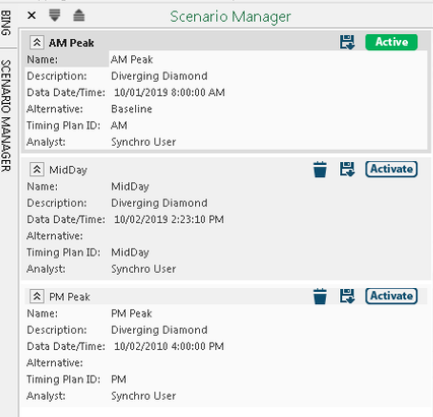
Note: Pay close attention to the Alternative and Timing Plan ID fields. If you upload .txt files with identical or empty inputs for those fields, the software will be unable to work.
Report Setup
Follow these step-by-step instructions on how to set up your report once you are ready to export the raw report files (.txt).
Step 2
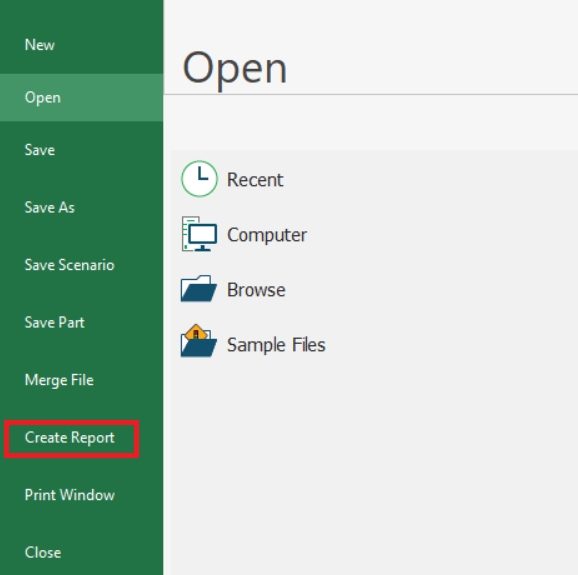
Click on File and select Create Report.
Step 3
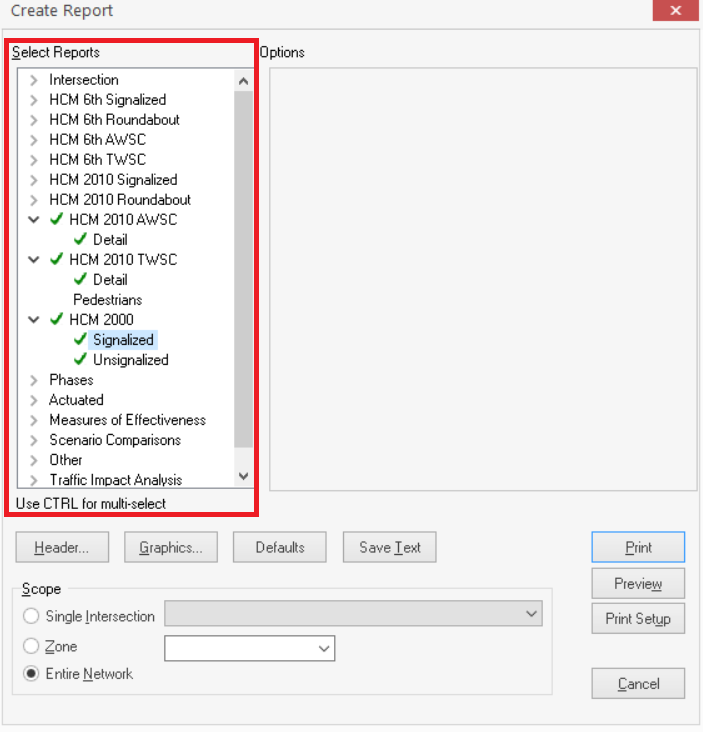
Select all report types you would like to include.It is crucial to select the "Lane, Volume, Timings" report type every time; failure to do so will cause an error and prevent results from being generated.
Step 4
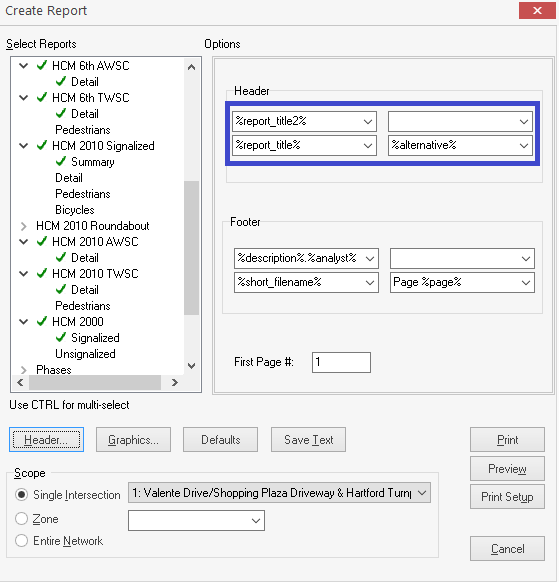
Click on the Header tab and locate the four boxes marked by the blue square above.
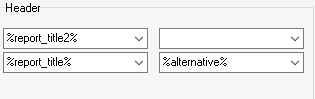
Use the dropdown menu for each box and set them such that they match the options shown above.
Note: You only need to worry about the four boxes with the blue squares in the Header tab. You can set the other boxes to your desired preferences.
Step 5

Click on Save Text and upload the files to SYNDATA to generate your tables.